This description takes you thru the steps needed to get your Microsoft 365 tenant ready for Stoltzen Metis. Please follow the steps carefully and do not skip any of the steps described unless they are marked as optional.
1. Introduction
Stoltzen Metis needs some way to communicate with your MS365 environment. This is done thru a pre or self configured Entra-ID Enterprise Application. Metis uses Delegated rights thru the service account defined in Step.1.
With ths guide you will enable your environment to be accessed by metis thru MSgraph or EWS API’s with Oauth2 authentication. Since the Metis uses delegated rights the security is also taken care of.
2. Prerequisites
For Metis to be able to work it needs to be registered as an enterprise application in Azure AD. (This only needs to be done once by the MS365 Global administrator) The easiest way to do so is thru the Central Configuration console. Log on to the central configuration console https://metis.roomconfig.com If you do not have an account, please create an account for your company.
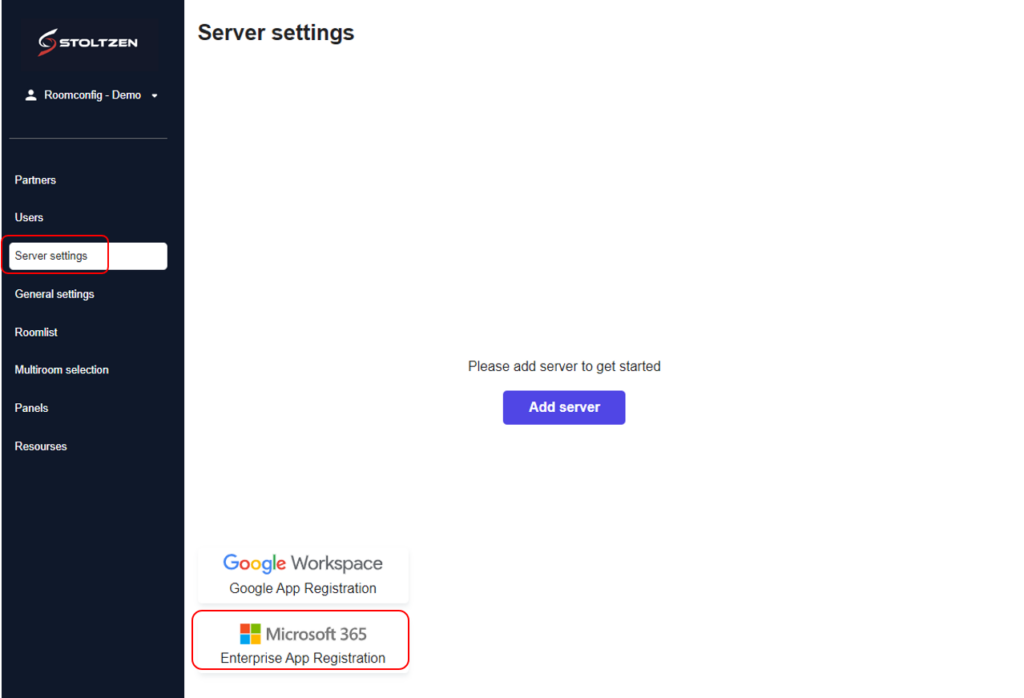
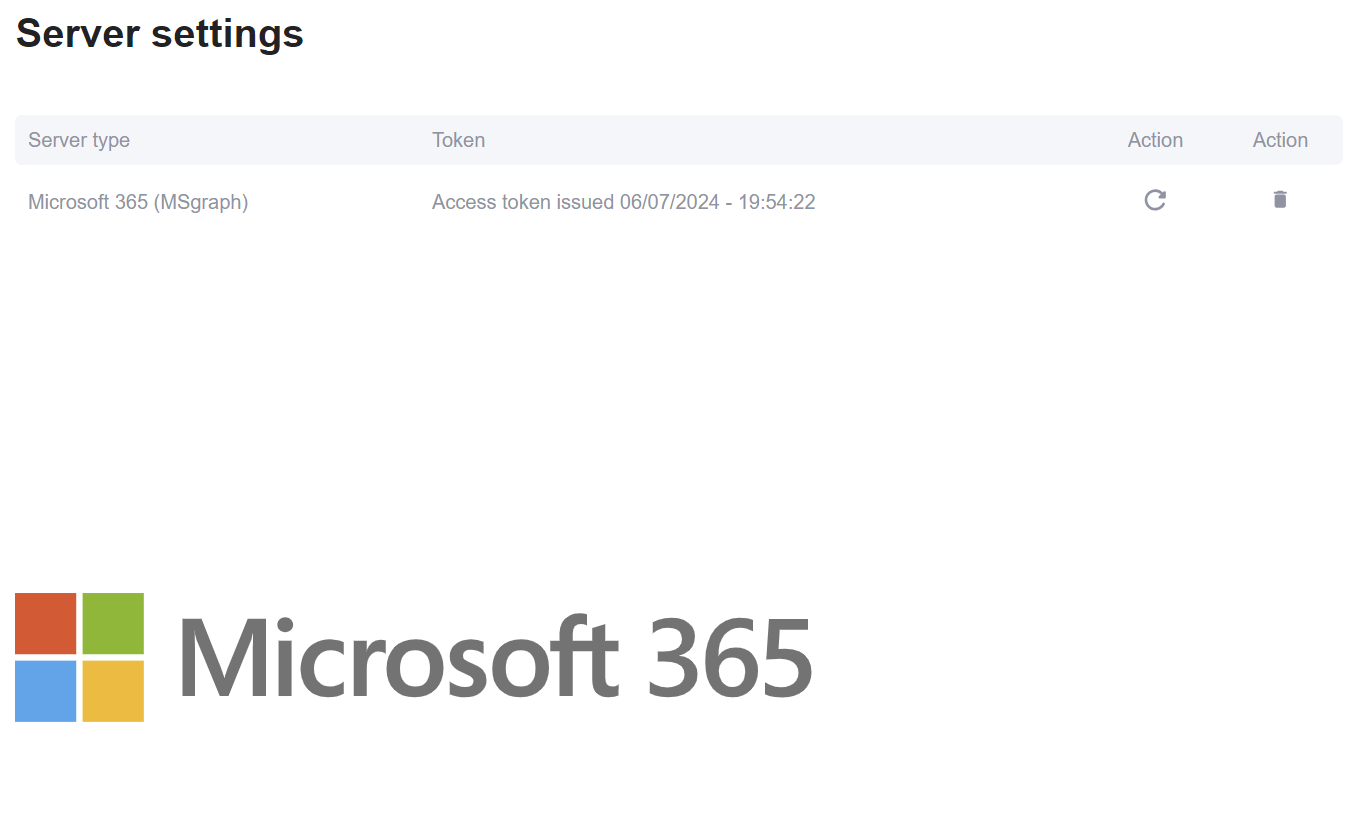
Select Server Settings and click on the “Microsoft 365 Enterprise App Registration” button – Log in with your MS365 Global Administrator account
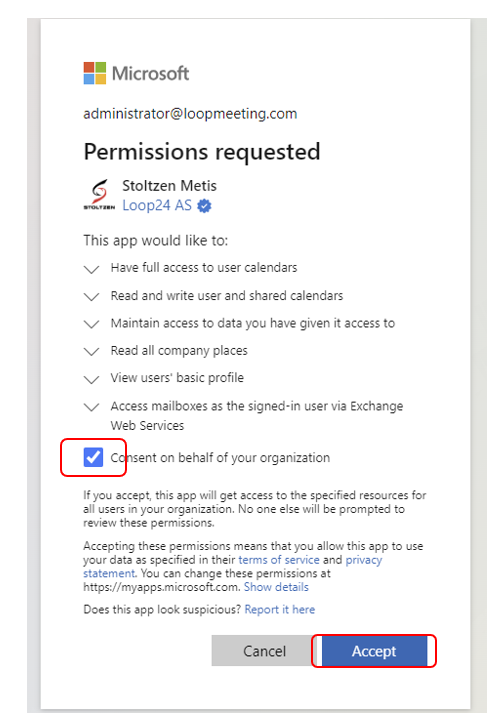
Check the checkbox and accept the application registration.
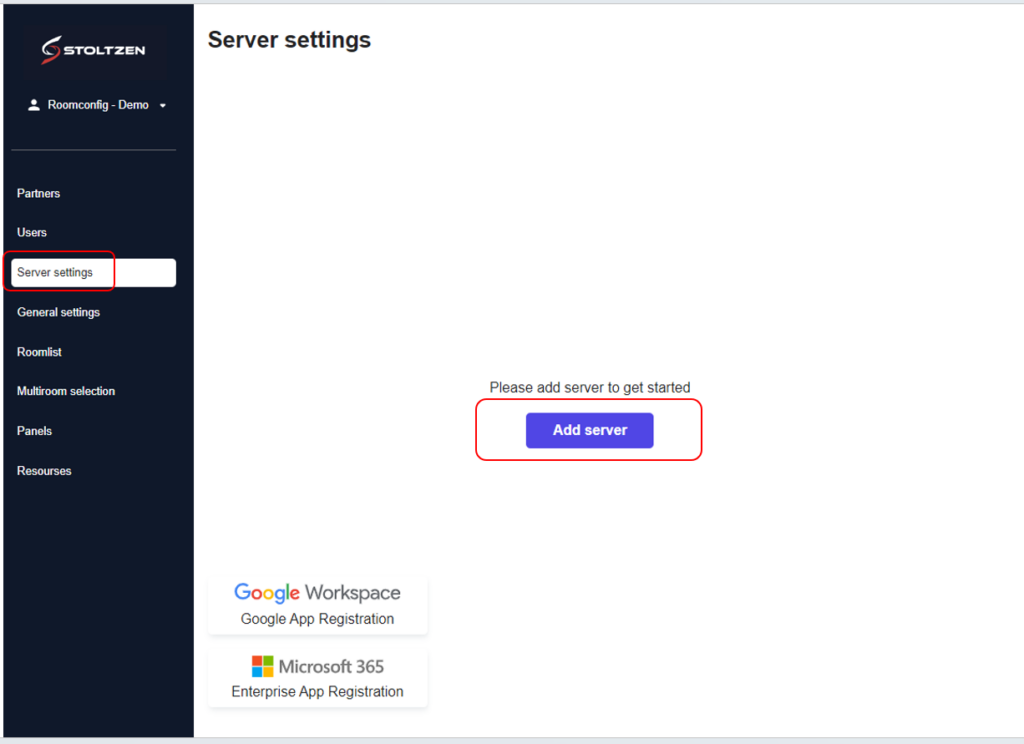
The Enterprise App is now registered, and next task is to add the connection. – Click the “Add server” button.
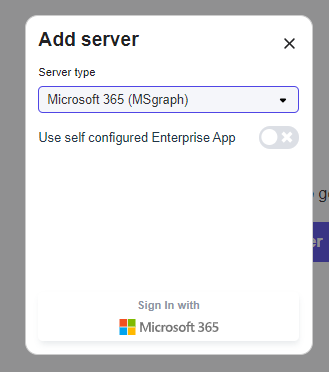
Recomendation: – Microsoft 365 (MSgraph) You have the option to use your own registered app, please see alternative guide.
Click “Sign In with Microsoft 365” button IMPORTANT!”: Log in with the service account created in Step.1
Congratulations – you are now ready to configure the different setings in your configuration console!